> ## Documentation Index
> Fetch the complete documentation index at: https://docs.clinkbill.com/llms.txt
> Use this file to discover all available pages before exploring further.
# Integration
> Learn how to connect with Clink from Test to Production environments.
**Prerequisite**: Please ensure you have an account in our test environment and thoroughly debug before deploying to production.
Our test environment uses a different domain and API key. Do not use real data in the test environment.
## Dashboard
Our dashboard manages daily operations for your account. The following resources can be managed through the dashboard:
The business operating unit.
A dashboard account owner.
The selling unit and pricing configuration.
Understand account balances and fees.
## API Keys
We provide secure and easy-to-use APIs. API integration is authenticated using a secret key generated through the dashboard.
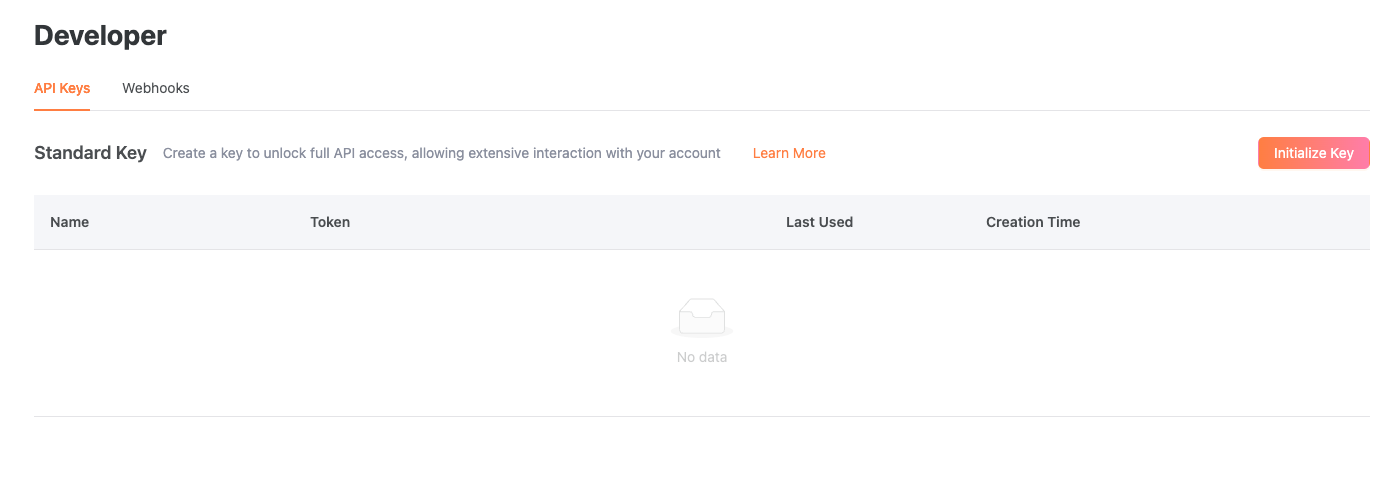
### Initialize API Key
Navigate to the **Developers** tab. Click **Initialize Key**, and be sure to copy and securely store the secret key, as it will only be displayed once.
 ### Key Types
* Secret Key: Used to authenticate requests with Clink. By default, this key can perform any API request without restrictions.
* Test environment key format: sk\_test\_\*\*\*\*\*\*\*\*\*\*\*\*\*\*\*\*\*\*\*\*
* Prod environment key format: sk\_prod\_\*\*\*\*\*\*\*\*\*\*\*\*\*\*\*\*\*\*\*\*
* Publishable Key: Used in client-side code with embedded payment forms. Clink is currently working on supporting this use case.
* Test environment key format: pk\_test\_\*\*\*\*\*\*\*\*\*\*\*\*\*\*\*\*\*\*\*\*
* Prod environment key format: pk\_prod\_\*\*\*\*\*\*\*\*\*\*\*\*\*\*\*\*\*\*\*\*
### Key Rotation
Rolling a key revokes it and automatically generates a replacement key. You can set the old key to expire immediately or schedule it to expire after a specified time.
To roll an API key:
* Open the API keys page.
* Click the overflow button (⋮) in the row of the key you want to roll, then select **Roll Key**.
* Select an expiration date from the **Expiration** dropdown.
* Click **Roll Key**.
* **Copy the new key value** displayed in the dialog.
* Save the key value, as you won't be able to retrieve it later.
### Delete a Secret Key
Deleting a key immediately prevents it from making API calls. You **cannot** delete the standard key if it is the last valid key remaining.
To delete an API key:
* Open the API keys page.
* Roll the key you want to delete.
* Update your code to use the new key.
* Click the overflow button (⋮) on the old key, then select delete.
### Restrict Secret Key with IP Addresses
Only secret keys can be restricted to specific IP addresses. You can limit API requests to one or more IP addresses or to an IP range using [CIDR](https://en.wikipedia.org/wiki/Classless_Inter-Domain_Routing).
* Open the API keys page.
* Click the overflow button (⋮) in the row of the key you want to restrict, then select **Manage IP Restrictions**.
* Toggle *Restrict usage to a set of IP addresses*.
* Click the **Add** button.
* Enter a single IP address or CIDR range.
* Clink the **Save** button.
## Webhooks
Webhooks enable applications to provide real-time information to other applications. They deliver data immediately as events occur, ensuring you receive information instantly.
Create an event destination to receive events at an HTTPS webhook endpoint. Once you register a webhook endpoint, Clink will push real-time event data to your application's webhook endpoint when events occur.
### Registration
You can register webhook endpoints from the dashboard or through the API.
To register a webhook endpoint in the dashboard, go to the **Developers** tab and select the Webhooks tab:
* Click the Add button.
* Enter your **HTTPS** endpoint.
* Select the event types you want to monitor. We recommend monitoring all events.
For automated setup, use the [Ensure Webhook Endpoint API](/api-reference/endpoint/ensure-webhook-endpoint). Webhook endpoint URLs must use HTTPS and resolve to a public host. Localhost, loopback IPs, private IPs, link-local addresses, and multicast addresses are rejected.
When an API call returns or rotates a `signingSecret`, store it in your server-side secret manager before processing webhook events.
For details about endpoint management, event types, and event payloads, see [Webhook Endpoint Management](/api-reference/endpoint/list-webhook-events) and [Webhook Reference](/api-reference/webhook/order).
### Verify Signature
Clink uses HMAC SHA-256 to generate a signature for each event. The signature key becomes available after webhook endpoint registration.
To generate your signature:
* Extract the timestamp, signature, and signature type from the header:
* Timestamp is available in the **X-Clink-Timestamp** field
* Clink-generated signature is available in the **X-Clink-Signature** field
* Signature type is available in the **X-Clink-SignType** field. The current value is **SHA256**.
* Prepare the payload string by concatenating:
* The timestamp (as a string)
* The character **.**
* The raw request body exactly as received
* Generate your signature by computing an HMAC with the SHA256 hash function and encoding the result as a hex string.
* Compare the signatures and process the event only if they match.
Use the raw request body for signature verification. Do not parse and re-serialize the JSON payload before computing the signature, as formatting changes will produce a different signature.
### Event Delivery
Clink attempts to deliver events to your destination up to 10 times with exponential backoff. All retries complete within approximately one day.
Please note that we do not guarantee events will be delivered in the order they were generated. Ensure your application does not depend on receiving events in a specific order.
### Best Practices
Credit to Stripe for their detailed guide: [Best practices for using webhooks](https://docs.stripe.com/webhooks#best-practices)
### Key Types
* Secret Key: Used to authenticate requests with Clink. By default, this key can perform any API request without restrictions.
* Test environment key format: sk\_test\_\*\*\*\*\*\*\*\*\*\*\*\*\*\*\*\*\*\*\*\*
* Prod environment key format: sk\_prod\_\*\*\*\*\*\*\*\*\*\*\*\*\*\*\*\*\*\*\*\*
* Publishable Key: Used in client-side code with embedded payment forms. Clink is currently working on supporting this use case.
* Test environment key format: pk\_test\_\*\*\*\*\*\*\*\*\*\*\*\*\*\*\*\*\*\*\*\*
* Prod environment key format: pk\_prod\_\*\*\*\*\*\*\*\*\*\*\*\*\*\*\*\*\*\*\*\*
### Key Rotation
Rolling a key revokes it and automatically generates a replacement key. You can set the old key to expire immediately or schedule it to expire after a specified time.
To roll an API key:
* Open the API keys page.
* Click the overflow button (⋮) in the row of the key you want to roll, then select **Roll Key**.
* Select an expiration date from the **Expiration** dropdown.
* Click **Roll Key**.
* **Copy the new key value** displayed in the dialog.
* Save the key value, as you won't be able to retrieve it later.
### Delete a Secret Key
Deleting a key immediately prevents it from making API calls. You **cannot** delete the standard key if it is the last valid key remaining.
To delete an API key:
* Open the API keys page.
* Roll the key you want to delete.
* Update your code to use the new key.
* Click the overflow button (⋮) on the old key, then select delete.
### Restrict Secret Key with IP Addresses
Only secret keys can be restricted to specific IP addresses. You can limit API requests to one or more IP addresses or to an IP range using [CIDR](https://en.wikipedia.org/wiki/Classless_Inter-Domain_Routing).
* Open the API keys page.
* Click the overflow button (⋮) in the row of the key you want to restrict, then select **Manage IP Restrictions**.
* Toggle *Restrict usage to a set of IP addresses*.
* Click the **Add** button.
* Enter a single IP address or CIDR range.
* Clink the **Save** button.
## Webhooks
Webhooks enable applications to provide real-time information to other applications. They deliver data immediately as events occur, ensuring you receive information instantly.
Create an event destination to receive events at an HTTPS webhook endpoint. Once you register a webhook endpoint, Clink will push real-time event data to your application's webhook endpoint when events occur.
### Registration
You can register webhook endpoints from the dashboard or through the API.
To register a webhook endpoint in the dashboard, go to the **Developers** tab and select the Webhooks tab:
* Click the Add button.
* Enter your **HTTPS** endpoint.
* Select the event types you want to monitor. We recommend monitoring all events.
For automated setup, use the [Ensure Webhook Endpoint API](/api-reference/endpoint/ensure-webhook-endpoint). Webhook endpoint URLs must use HTTPS and resolve to a public host. Localhost, loopback IPs, private IPs, link-local addresses, and multicast addresses are rejected.
When an API call returns or rotates a `signingSecret`, store it in your server-side secret manager before processing webhook events.
For details about endpoint management, event types, and event payloads, see [Webhook Endpoint Management](/api-reference/endpoint/list-webhook-events) and [Webhook Reference](/api-reference/webhook/order).
### Verify Signature
Clink uses HMAC SHA-256 to generate a signature for each event. The signature key becomes available after webhook endpoint registration.
To generate your signature:
* Extract the timestamp, signature, and signature type from the header:
* Timestamp is available in the **X-Clink-Timestamp** field
* Clink-generated signature is available in the **X-Clink-Signature** field
* Signature type is available in the **X-Clink-SignType** field. The current value is **SHA256**.
* Prepare the payload string by concatenating:
* The timestamp (as a string)
* The character **.**
* The raw request body exactly as received
* Generate your signature by computing an HMAC with the SHA256 hash function and encoding the result as a hex string.
* Compare the signatures and process the event only if they match.
Use the raw request body for signature verification. Do not parse and re-serialize the JSON payload before computing the signature, as formatting changes will produce a different signature.
### Event Delivery
Clink attempts to deliver events to your destination up to 10 times with exponential backoff. All retries complete within approximately one day.
Please note that we do not guarantee events will be delivered in the order they were generated. Ensure your application does not depend on receiving events in a specific order.
### Best Practices
Credit to Stripe for their detailed guide: [Best practices for using webhooks](https://docs.stripe.com/webhooks#best-practices)