> ## Documentation Index
> Fetch the complete documentation index at: https://docs.clinkbill.com/llms.txt
> Use this file to discover all available pages before exploring further.
# Product & Price
> Managing products and pricing structures
## Overview
Products and Prices are core resources within Clink that define what you sell and how much you charge for it. These entities integrate seamlessly with subscriptions, invoices, and checkout sessions.
## Product Management
Access your product list through the **Products** tab.
### Creating a Product
To create a new product:
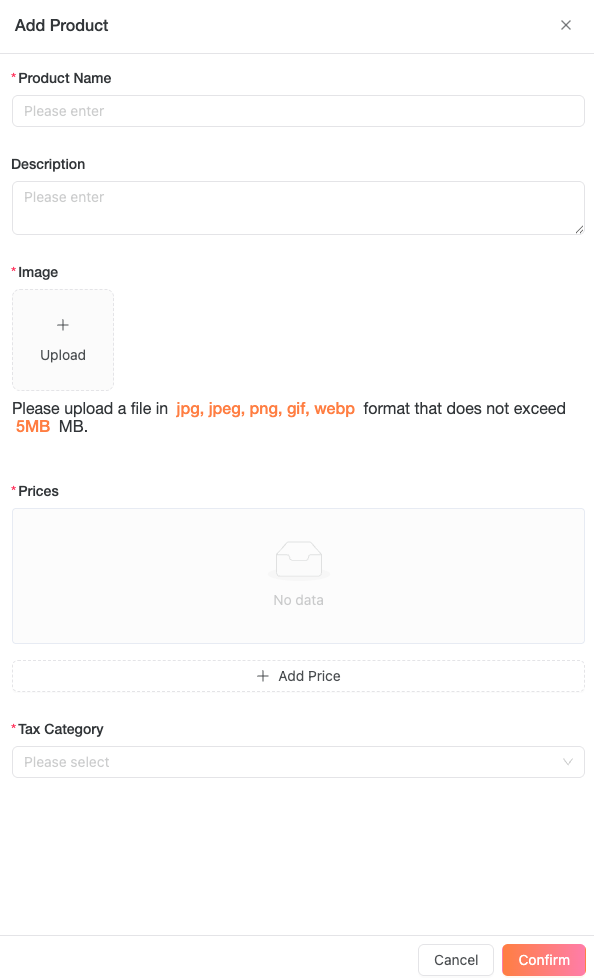 1. Navigate to the **Products** tab and click **Add**
2. Enter the product name and upload a product image
3. Click **Add Price** to set pricing options:
1. Choose between *Recurring* or *One-off* price types
2. For recurring prices, select a *Billing Period* (Daily, Weekly, Monthly, Quarterly, Half-yearly, Yearly, or Custom)
3. Optionally enable *Free Trial* and specify the trial duration
4. Set as *Default Price* if desired
5. Add additional pricing tiers as needed
1. Navigate to the **Products** tab and click **Add**
2. Enter the product name and upload a product image
3. Click **Add Price** to set pricing options:
1. Choose between *Recurring* or *One-off* price types
2. For recurring prices, select a *Billing Period* (Daily, Weekly, Monthly, Quarterly, Half-yearly, Yearly, or Custom)
3. Optionally enable *Free Trial* and specify the trial duration
4. Set as *Default Price* if desired
5. Add additional pricing tiers as needed
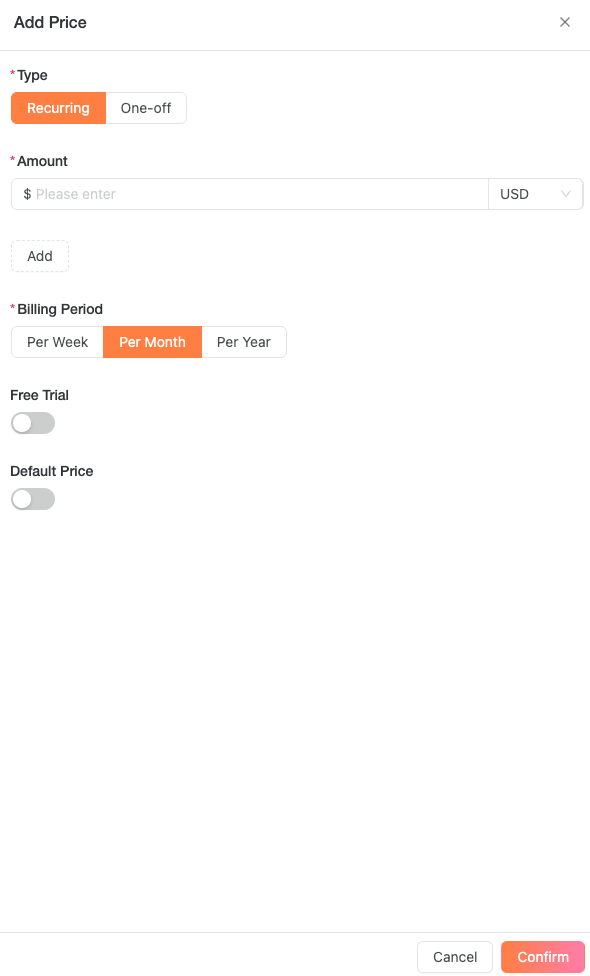 4. Select the appropriate *Tax Category* from the dropdown menu
### Create Products by API
You can upload a product image with the [Upload Product Image API](/api-reference/endpoint/upload-product-image) before creating a product. The API returns an `ossId` that you pass as `image` when calling [Create Product API](/api-reference/endpoint/create-product).
You can also create products through the [Create Product API](/api-reference/endpoint/create-product). The API supports creating a product together with its prices and accepts localized product names through `localizedNames`.
Use localized names when you want checkout and billing surfaces to display a customer-facing product name in different languages. The default `name` remains the fallback value.
### Editing Products
To modify an existing product:
1. Go to the **Products** tab
2. Find the product you want to edit
3. Click the **Edit** button
4. Make your changes
5. Click **Confirm** to save
### Archiving Products
When you archive a product, it becomes unavailable for new subscriptions while existing subscriptions remain active until canceled.
To archive a product:
1. Navigate to the **Products** tab
2. Locate the target product
3. Click **Archive** and confirm in the popup window
To restore an archived product, follow the same steps but click **Unarchive** instead.
## Price Management
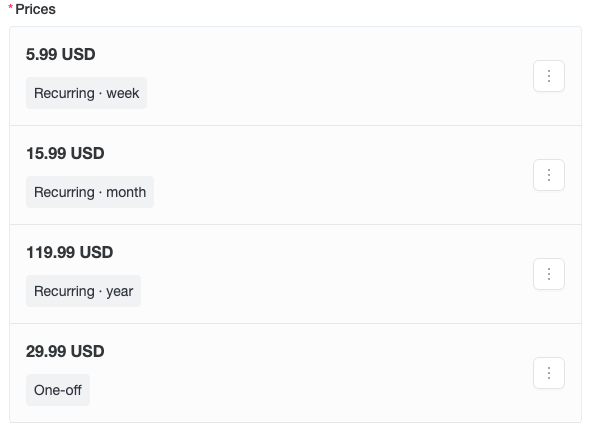
Products can have single or multiple pricing options, combining both recurring and one-off prices. For example:
A starter plan could offer:
* \$5.99 weekly
* \$39.99 quarterly
* \$69.99 half-yearly
* \$15.99 monthly
* \$119.99 yearly
* \$29.99 one-time purchase
Recurring prices support these interval values: `day`, `week`, `month`, `quarter`, `half_year`, `year`, and `custom`. For custom intervals, use `interval_count` to define the number of days in the billing cycle.
4. Select the appropriate *Tax Category* from the dropdown menu
### Create Products by API
You can upload a product image with the [Upload Product Image API](/api-reference/endpoint/upload-product-image) before creating a product. The API returns an `ossId` that you pass as `image` when calling [Create Product API](/api-reference/endpoint/create-product).
You can also create products through the [Create Product API](/api-reference/endpoint/create-product). The API supports creating a product together with its prices and accepts localized product names through `localizedNames`.
Use localized names when you want checkout and billing surfaces to display a customer-facing product name in different languages. The default `name` remains the fallback value.
### Editing Products
To modify an existing product:
1. Go to the **Products** tab
2. Find the product you want to edit
3. Click the **Edit** button
4. Make your changes
5. Click **Confirm** to save
### Archiving Products
When you archive a product, it becomes unavailable for new subscriptions while existing subscriptions remain active until canceled.
To archive a product:
1. Navigate to the **Products** tab
2. Locate the target product
3. Click **Archive** and confirm in the popup window
To restore an archived product, follow the same steps but click **Unarchive** instead.
## Price Management
Products can have single or multiple pricing options, combining both recurring and one-off prices. For example:
A starter plan could offer:
* \$5.99 weekly
* \$39.99 quarterly
* \$69.99 half-yearly
* \$15.99 monthly
* \$119.99 yearly
* \$29.99 one-time purchase
Recurring prices support these interval values: `day`, `week`, `month`, `quarter`, `half_year`, `year`, and `custom`. For custom intervals, use `interval_count` to define the number of days in the billing cycle.
 ### Multi-currency Pricing
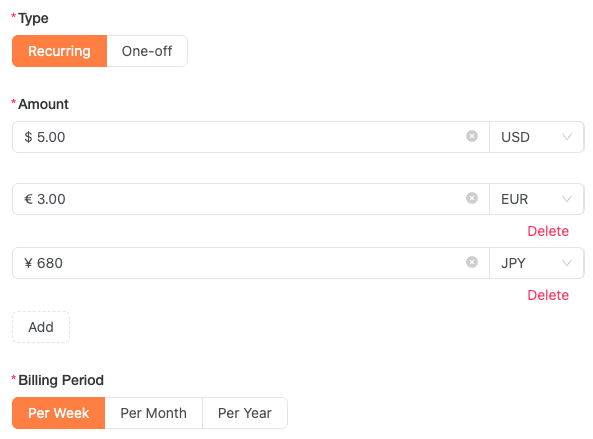
Multi-currency pricing allows you to set localized prices for different markets using a single price configuration (only one price ID). For example:
* Default price: \$5.00 USD per week
* European price: €3.00 EUR per week
* Japanese price: ¥680 JPY per week
### Multi-currency Pricing
Multi-currency pricing allows you to set localized prices for different markets using a single price configuration (only one price ID). For example:
* Default price: \$5.00 USD per week
* European price: €3.00 EUR per week
* Japanese price: ¥680 JPY per week
 During settlement, Clink automatically converts customer payments from their local currency to your settlement currency, eliminating the need to manage multiple currencies.
### Automatic Currency Conversion
For **One-off** prices without specific multi-currency settings, Clink automatically offers local currency options to international customers during checkout.
### Edit Price
Price changes in Clink are managed through a snapshot system. While merchants cannot view or edit these snapshots directly, each price update creates a new snapshot. Here's how price changes affect your subscriptions or one-time sales:
* New subscriptions and purchases will use the updated price
* Existing subscriptions will continue with their original price until canceled
* Price history is maintained automatically through snapshots
Price API responses include `priceSnapshotId`, which is the currently active snapshot for that price. Product API responses also include `priceSnapshotId` on each item in `priceList`. Use this snapshot ID when another API needs an immutable price reference, such as scheduled subscription phases.
To edit a price:
1. Navigate to the **Products** tab and locate your target product
2. Expand the price list using the arrow on the left, or click the **Edit** button
3. Find the price you want to update and click its overflow menu button (⋮)
4. Select **Edit** from the menu
5. Make your desired changes on the edit page
6. Click **Confirm** to save your changes
During settlement, Clink automatically converts customer payments from their local currency to your settlement currency, eliminating the need to manage multiple currencies.
### Automatic Currency Conversion
For **One-off** prices without specific multi-currency settings, Clink automatically offers local currency options to international customers during checkout.
### Edit Price
Price changes in Clink are managed through a snapshot system. While merchants cannot view or edit these snapshots directly, each price update creates a new snapshot. Here's how price changes affect your subscriptions or one-time sales:
* New subscriptions and purchases will use the updated price
* Existing subscriptions will continue with their original price until canceled
* Price history is maintained automatically through snapshots
Price API responses include `priceSnapshotId`, which is the currently active snapshot for that price. Product API responses also include `priceSnapshotId` on each item in `priceList`. Use this snapshot ID when another API needs an immutable price reference, such as scheduled subscription phases.
To edit a price:
1. Navigate to the **Products** tab and locate your target product
2. Expand the price list using the arrow on the left, or click the **Edit** button
3. Find the price you want to update and click its overflow menu button (⋮)
4. Select **Edit** from the menu
5. Make your desired changes on the edit page
6. Click **Confirm** to save your changes