> ## Documentation Index
> Fetch the complete documentation index at: https://docs.clinkbill.com/llms.txt
> Use this file to discover all available pages before exploring further.
# Skill Marketplace
> Prepare, submit, publish, and manage Skills in the Clink Skill Marketplace.
Clink Skill Marketplace lets merchants publish reviewed Skills for users to discover, inspect, and install. Use **Developers > Skill Marketplace** in the Clink Dashboard to upload packages, follow review progress, publish approved versions, and maintain public listing content.
Only Skills in the **Published** state appear in the public Marketplace. A Skill in **Ready** has passed review but still requires a merchant to publish it.
## Publishing lifecycle
Create a ZIP package that contains the current `SKILL.md`, then prepare the Skill name, version, category, and marketplace summary.
Upload the ZIP package from the Dashboard. Clink checks the package and submitted marketplace information.
A successful review moves the Skill to **Ready**. If the review fails, use the failure details to fix the package and upload it again.
Review the public content, then select **Publish** to make the Skill visible in the public Marketplace.
## Status reference
| Status | Meaning | Next action | Publicly visible |
| :------------ | :----------------------------------------------------------- | :------------------------------------------------------------ | :--------------: |
| **Uploaded** | The ZIP package was submitted and is waiting for processing. | View the submission and wait for review. | No |
| **Polishing** | Clink is processing or reviewing the Skill. | Wait for the review result. | No |
| **Ready** | The Skill passed review but has not been published. | Review the listing and select **Publish**. | No |
| **Published** | The Skill is available in the public Marketplace. | Manage the listing, submit an update, or unpublish it. | Yes |
| **Failed** | One or more review checks did not pass. | Review the failure details, fix the package, and reupload it. | No |
## Before you begin
| Item | What to prepare |
| :------------------ | :---------------------------------------------------------------------------------------------------------------- |
| Merchant account | An account that can access the Clink Dashboard. The published Skill belongs to the current merchant or publisher. |
| Skill package | A ZIP package containing the files required by the Skill. |
| `SKILL.md` | The current Skill instructions. The declared version must match the version submitted in the form. |
| Marketplace content | A clear name, version, category, and one-sentence summary. |
| Tips configuration | Optional suggested amounts and a public note. Tips are displayed only after the required Clink check passes. |
Merchants do not enter or edit the public CLI command or installation Prompt. Clink generates both from the reviewed Skill package and displays them as read-only installation methods.
## Publish a Skill
### Prepare the package
Before uploading, confirm that:
* The ZIP package opens successfully and contains `SKILL.md`.
* The version declared in `SKILL.md` exactly matches the version you plan to submit.
* The summary explains what the Skill does and who should use it.
* The package contains enough accurate instructions for Clink to generate its installation methods.
* Payment-trigger and user-confirmation behavior is clear if the Skill uses Agent Payment.
* The required tip payment handler is present if you plan to enable Tips.
### Submit the Skill
Sign in to the Clink Dashboard and go to **Developers > Skill Marketplace**. Select **Upload skill**.
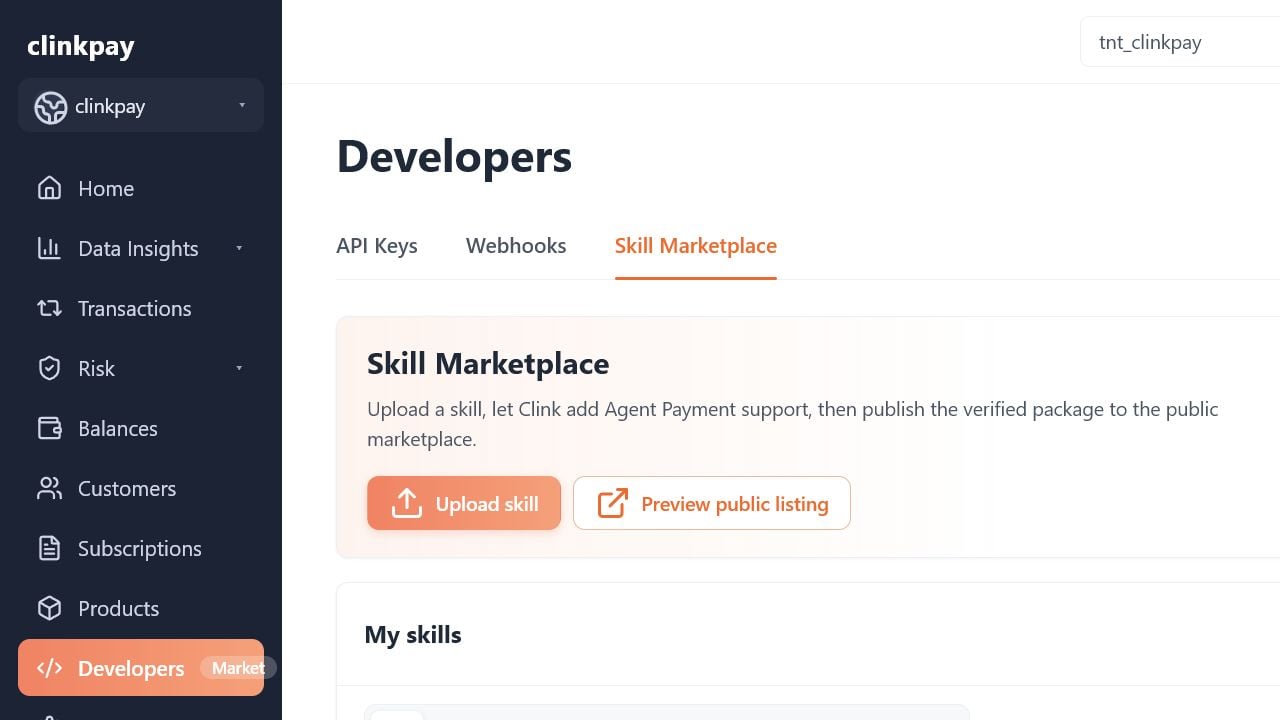 Choose the package you want to submit. Clink checks the ZIP structure and `SKILL.md` during review.
Enter the public marketplace information.
| Field | Purpose |
| :---------------------- | :------------------------------------------------------------------ |
| **Skill Name** | Displayed on public cards and the Skill detail page. |
| **Version** | Used for the listing and version history. It must match `SKILL.md`. |
| **Category** | Used for public filtering and the category label. |
| **Marketplace summary** | Displayed on the public list and at the top of the detail page. |
Choose the package you want to submit. Clink checks the ZIP structure and `SKILL.md` during review.
Enter the public marketplace information.
| Field | Purpose |
| :---------------------- | :------------------------------------------------------------------ |
| **Skill Name** | Displayed on public cards and the Skill detail page. |
| **Version** | Used for the listing and version history. It must match `SKILL.md`. |
| **Category** | Used for public filtering and the category label. |
| **Marketplace summary** | Displayed on the public list and at the top of the detail page. |
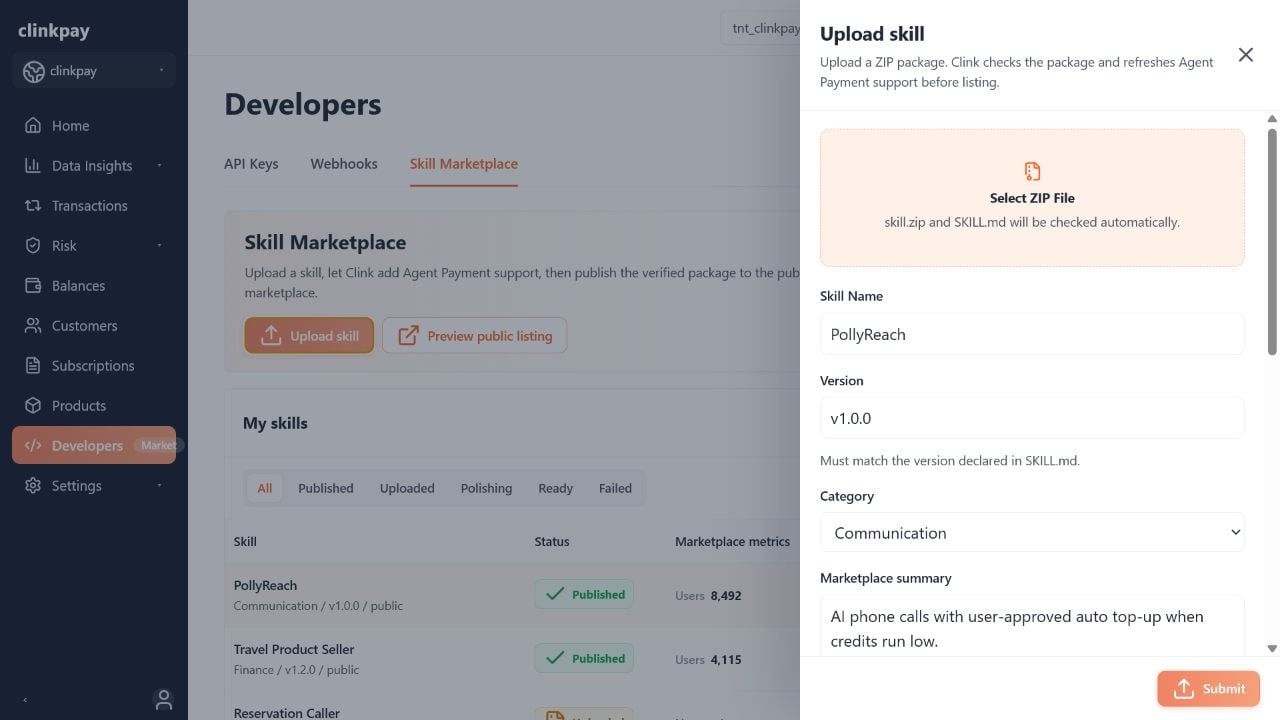 Enable **Tips** only when the Skill supports the required tip payment flow. Add suggested amounts and a public note, then submit the package.
Follow the status in **My skills**. The review can include version comparison, package schema, security, and Agent Payment checks. Clink also generates the public CLI command and Prompt from the reviewed package.
Enabling Tips in the form does not make the Tips panel public by itself. The related Clink check must also pass.
### Review and publish
When the Skill reaches **Ready**:
1. Select **View** and check the submitted listing, generated installation methods, overview cards, Tips configuration, and version information.
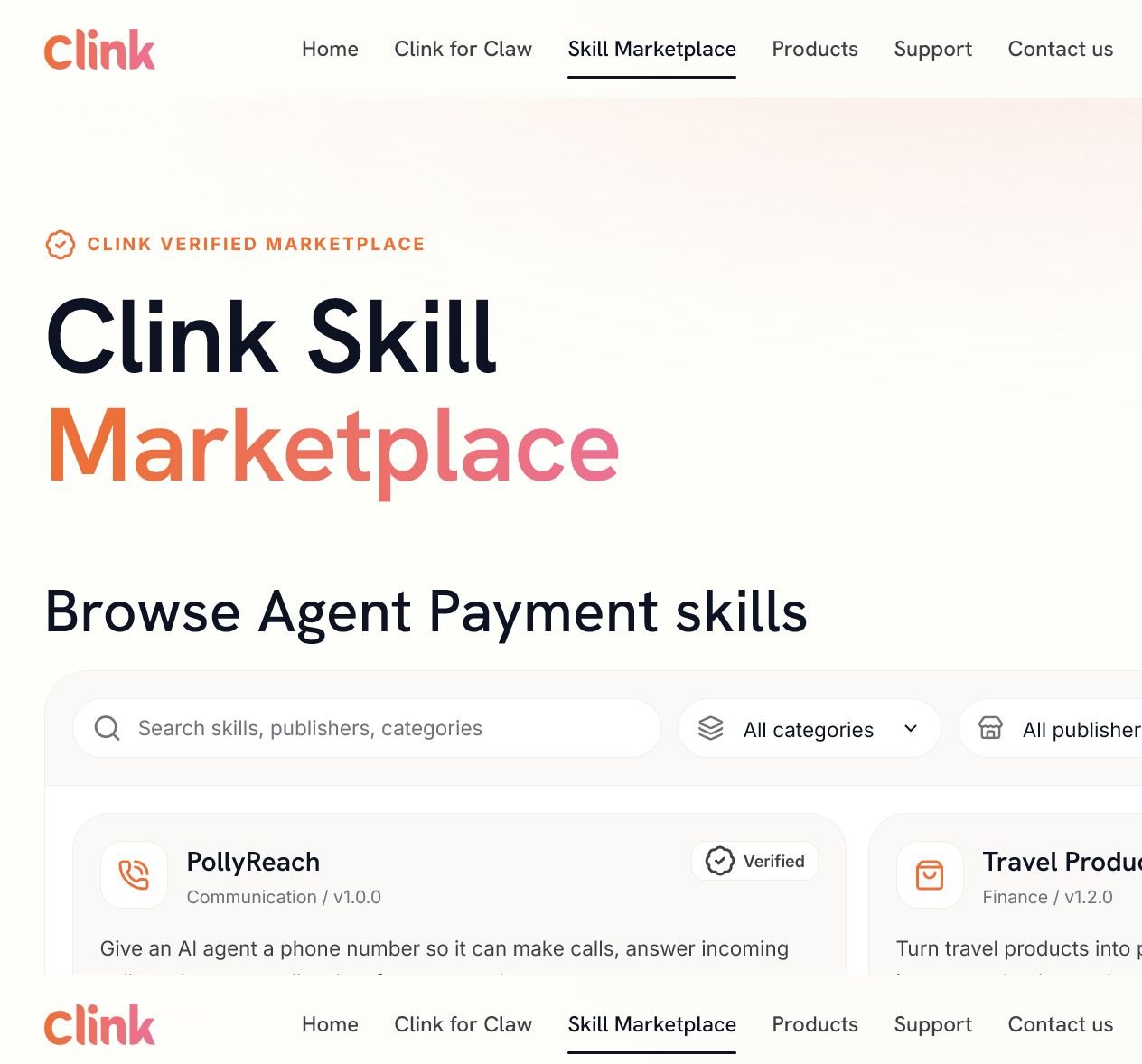
2. Use **Preview public listing** to review how the publisher's Skills appear in the public Marketplace.
3. Return to **My skills** and select **Publish**.
The generated CLI command and Prompt are read-only. If either method is inaccurate, correct the relevant package content and submit a new version for review instead of editing the generated text directly.
## Manage a published Skill
### Public Marketplace presentation
The public list contains only **Published** Skills. A list card can include the Skill name, category, current version, summary, capabilities, publisher, Users metric, verification badge, generated installation Prompt, and an eligible CLI tips label.
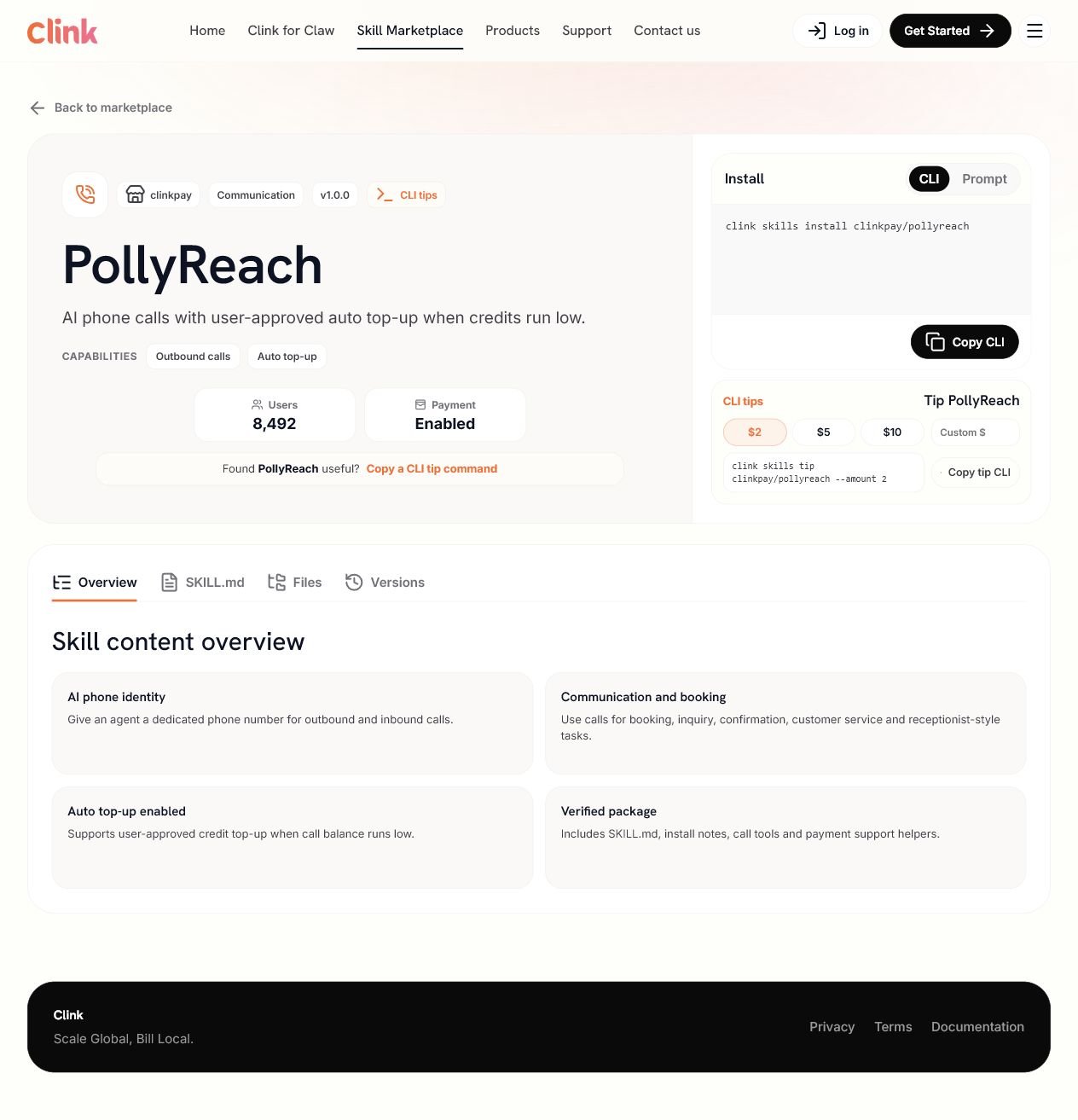
The public detail page can include the listing metadata, generated CLI and Prompt installation methods, overview cards, `SKILL.md`, package files, version history, and eligible Tips content.
Enable **Tips** only when the Skill supports the required tip payment flow. Add suggested amounts and a public note, then submit the package.
Follow the status in **My skills**. The review can include version comparison, package schema, security, and Agent Payment checks. Clink also generates the public CLI command and Prompt from the reviewed package.
Enabling Tips in the form does not make the Tips panel public by itself. The related Clink check must also pass.
### Review and publish
When the Skill reaches **Ready**:
1. Select **View** and check the submitted listing, generated installation methods, overview cards, Tips configuration, and version information.
2. Use **Preview public listing** to review how the publisher's Skills appear in the public Marketplace.
3. Return to **My skills** and select **Publish**.
The generated CLI command and Prompt are read-only. If either method is inaccurate, correct the relevant package content and submit a new version for review instead of editing the generated text directly.
## Manage a published Skill
### Public Marketplace presentation
The public list contains only **Published** Skills. A list card can include the Skill name, category, current version, summary, capabilities, publisher, Users metric, verification badge, generated installation Prompt, and an eligible CLI tips label.
The public detail page can include the listing metadata, generated CLI and Prompt installation methods, overview cards, `SKILL.md`, package files, version history, and eligible Tips content.
 ### Review and maintain content
Select **View** for a Skill to inspect its listing.
| Content | How it is managed |
| :--------------------- | :--------------------------------------------------------------------------------------------------------------------- |
| Submitted listing | The merchant provides the category, version, and marketplace summary. |
| Install methods | Clink generates the CLI command and Prompt from the reviewed package. They are read-only for merchants. |
| Public detail overview | Clink-generated overview cards can be edited, added, or removed by the merchant. |
| Tips | The merchant can manage suggested amounts and the public note; public display also depends on the related Clink check. |
| Version timeline | Shows published versions, dates, status labels, and merchant-provided version notes. |
| Marketplace metrics | Shows the Users metric reported by the Marketplace. |
### Submit a version update
You can submit an update for a **Ready** or **Published** Skill.
Update the Skill files and `SKILL.md`, then create a new ZIP package.
Open the Skill details and select **Submit update**.
Enter a version that is newer than the current version and matches `SKILL.md`. Add a concise version note for the version timeline.
Review the listing and Tips configuration, then submit the package. Clink reviews the new package and regenerates its CLI command and Prompt.
Submitting an update does not immediately replace the public package. The new version must pass review before it can become the public version.
### Unpublish a Skill
Select **Unpublish** for a **Published** Skill to remove it from the public Marketplace. The Skill remains available in the merchant Dashboard, where the current status and available actions indicate whether it can be published again.
Unpublishing removes the Skill from the public list and public detail page. Confirm that this is the intended user impact before continuing.
## Handle Skill payment webhooks
Some Marketplace Skills require users to purchase additional credits before they can continue. After Clink completes the recharge order, the merchant webhook must apply the result to the merchant account and return the corresponding account response.
Before a merchant enters this flow, Clink Marketplace has already registered the order-event webhook and prepared the required webhook configuration. Merchants do not create or update the endpoint, manually change event subscriptions, or manage signing-secret rotation. This section covers only the webhook handler logic that the merchant server must implement.
### Successful payment event
When the event type is `order.succeeded`, reconcile the order, find the merchant account by `data.object.customerEmail`, apply the successful recharge, and return HTTP `200` with `account.reloaded` or `account.created`.
### Secure processing sequence
Verify `X-Clink-Timestamp`, `X-Clink-Signature`, and `X-Clink-SignType` against the raw request body before reading or acting on the event. Reject requests with an invalid signature.
Prefer the event `id` as the idempotency key and store the original response for retries. If the merchant also stores `merchantReferenceId` and `sessionId`, match both when both are present and quarantine mismatches instead of applying credits.
Continue to account resolution only when the event type is `order.succeeded`. Use `data.object.customerEmail` to identify the merchant account.
If the email belongs to a user already registered with the merchant, apply the recharge once and prepare `account.reloaded`. If no account exists, the merchant first creates the user account, applies the purchased credits as its initial recharge, and prepares `account.created`.
Commit the local order state, account creation or recharge, and idempotency record before returning HTTP `200`. A retry must return the same stored response without creating another account or applying credits again.
Do not treat HTTP `200` as the recharge itself. Return success only after the merchant account change is committed. If local fulfillment fails, return a non-2xx response so the event can be retried safely.
### Account response fields
The API reference names the examples `accountReloaded` and `accountCreated`. The JSON `type` values are `account.reloaded` and `account.created`.
| Response field | Source or requirement |
| :------------------- | :-------------------------------------------------------------------------------------------------- |
| `object` | Always `event`. |
| `type` | `account.reloaded` for an existing merchant account, or `account.created` after creating a new one. |
| `data.customerEmail` | Must match incoming `data.object.customerEmail`. |
| `data.webSite` | The merchant's absolute website URL, including the `http` or `https` scheme. |
| `data.userId` | The user ID in the merchant system, not the Clink `customerId`. |
| `data.amount` | Copy incoming `data.object.amountTotal`. |
| `data.currency` | Copy incoming `data.object.paymentCurrency`. |
```json Existing merchant account theme={null}
{
"object": "event",
"type": "account.reloaded",
"data": {
"customerEmail": "customer@example.com",
"webSite": "https://merchant.example.com",
"userId": "usr_xxxxx",
"amount": 19.99,
"currency": "USD"
}
}
```
```json New merchant account theme={null}
{
"object": "event",
"type": "account.created",
"data": {
"customerEmail": "customer@example.com",
"webSite": "https://merchant.example.com",
"userId": "usr_xxxxx",
"amount": 19.99,
"currency": "USD"
}
}
```
### Retry and ordering requirements
* Process the same event more than once without duplicating account creation or credits.
* Store the response associated with the event and return it again for duplicate deliveries.
* Tolerate out-of-order deliveries and apply the recharge only after processing a valid `order.succeeded` event.
* Use a unique merchant-account constraint for normalized customer email so concurrent deliveries cannot create duplicate users.
* Record the order ID, event ID, resolved merchant user ID, applied amount and currency, and final account response for audit and recovery.
## Resolve review failures
A Skill enters **Failed** when one or more review checks do not pass. Failed Skills remain private and are not available in the public Marketplace.
### Read the review feedback
| Detail | Meaning |
| :----------------------- | :------------------------------------------------------------ |
| Failure reason | A summary and explanation of the issue. |
| Failed check | The review check that did not pass. |
| Detected in | The file or configuration location associated with the issue. |
| Review run | The identifier for the review attempt. |
| Fix suggestion and steps | Recommended changes for the package. |
| Impact | How the issue prevents publication or affects the Skill. |
| Next step | Instructions for packaging and resubmitting the Skill. |
### Fix and reupload
Use **Failed check** and **Detected in** to find the affected file or configuration.
Update the package using the review feedback. If payment behavior is involved, make the trigger and user-confirmation logic explicit and verifiable.
Confirm that the ZIP opens, includes the current `SKILL.md`, and uses the same version in the package and submission form.
Select **Reupload**, choose the corrected ZIP package, and submit it for another review.
## Publication checklist
### Package and technical content
* [ ] The ZIP package opens successfully and contains `SKILL.md`.
* [ ] The submitted version matches the version declared in `SKILL.md`.
* [ ] The package contains accurate content for Clink to generate the CLI command and Prompt.
* [ ] Agent Payment behavior is clear and reviewable when used.
* [ ] A reviewable tip payment handler is present when Tips are enabled.
### Marketplace content
* [ ] The Skill name is concise and recognizable.
* [ ] The category supports accurate discovery.
* [ ] The summary explains the Skill's main outcome.
* [ ] Generated installation methods were reviewed as part of the listing preview.
* [ ] Overview cards describe real capabilities and prerequisites.
* [ ] A version note is included for an update.
### Before publishing
* [ ] The Skill status is **Ready**.
* [ ] The listing, generated installation methods, overview content, Tips, and version information were reviewed.
* [ ] The public listing preview was checked.
* [ ] **Publish** is selected only after the public content is ready.
## Frequently asked questions
Only **Published** Skills appear publicly. **Uploaded**, **Polishing**, **Ready**, and **Failed** Skills remain private. A **Ready** Skill still needs to be published by the merchant.
No. Clink generates both installation methods from the reviewed package. Correct the relevant package content and submit a new version when the generated result needs to change.
Tips must be enabled by the merchant and pass the related Clink check before the public CLI tips content is displayed.
No. The submitted version must match the version declared in the package's `SKILL.md`. An update must also use a version newer than the current one.
Overview cards and Tips configuration can be maintained from the Skill details. Package or generated installation-method changes should be submitted as a new version for review.
Review timelines, marketplace fees, settlement, revenue sharing, and refund policies are not defined by this guide. Use the latest Clink commercial terms or contact Clink support for current policy information.
### Review and maintain content
Select **View** for a Skill to inspect its listing.
| Content | How it is managed |
| :--------------------- | :--------------------------------------------------------------------------------------------------------------------- |
| Submitted listing | The merchant provides the category, version, and marketplace summary. |
| Install methods | Clink generates the CLI command and Prompt from the reviewed package. They are read-only for merchants. |
| Public detail overview | Clink-generated overview cards can be edited, added, or removed by the merchant. |
| Tips | The merchant can manage suggested amounts and the public note; public display also depends on the related Clink check. |
| Version timeline | Shows published versions, dates, status labels, and merchant-provided version notes. |
| Marketplace metrics | Shows the Users metric reported by the Marketplace. |
### Submit a version update
You can submit an update for a **Ready** or **Published** Skill.
Update the Skill files and `SKILL.md`, then create a new ZIP package.
Open the Skill details and select **Submit update**.
Enter a version that is newer than the current version and matches `SKILL.md`. Add a concise version note for the version timeline.
Review the listing and Tips configuration, then submit the package. Clink reviews the new package and regenerates its CLI command and Prompt.
Submitting an update does not immediately replace the public package. The new version must pass review before it can become the public version.
### Unpublish a Skill
Select **Unpublish** for a **Published** Skill to remove it from the public Marketplace. The Skill remains available in the merchant Dashboard, where the current status and available actions indicate whether it can be published again.
Unpublishing removes the Skill from the public list and public detail page. Confirm that this is the intended user impact before continuing.
## Handle Skill payment webhooks
Some Marketplace Skills require users to purchase additional credits before they can continue. After Clink completes the recharge order, the merchant webhook must apply the result to the merchant account and return the corresponding account response.
Before a merchant enters this flow, Clink Marketplace has already registered the order-event webhook and prepared the required webhook configuration. Merchants do not create or update the endpoint, manually change event subscriptions, or manage signing-secret rotation. This section covers only the webhook handler logic that the merchant server must implement.
### Successful payment event
When the event type is `order.succeeded`, reconcile the order, find the merchant account by `data.object.customerEmail`, apply the successful recharge, and return HTTP `200` with `account.reloaded` or `account.created`.
### Secure processing sequence
Verify `X-Clink-Timestamp`, `X-Clink-Signature`, and `X-Clink-SignType` against the raw request body before reading or acting on the event. Reject requests with an invalid signature.
Prefer the event `id` as the idempotency key and store the original response for retries. If the merchant also stores `merchantReferenceId` and `sessionId`, match both when both are present and quarantine mismatches instead of applying credits.
Continue to account resolution only when the event type is `order.succeeded`. Use `data.object.customerEmail` to identify the merchant account.
If the email belongs to a user already registered with the merchant, apply the recharge once and prepare `account.reloaded`. If no account exists, the merchant first creates the user account, applies the purchased credits as its initial recharge, and prepares `account.created`.
Commit the local order state, account creation or recharge, and idempotency record before returning HTTP `200`. A retry must return the same stored response without creating another account or applying credits again.
Do not treat HTTP `200` as the recharge itself. Return success only after the merchant account change is committed. If local fulfillment fails, return a non-2xx response so the event can be retried safely.
### Account response fields
The API reference names the examples `accountReloaded` and `accountCreated`. The JSON `type` values are `account.reloaded` and `account.created`.
| Response field | Source or requirement |
| :------------------- | :-------------------------------------------------------------------------------------------------- |
| `object` | Always `event`. |
| `type` | `account.reloaded` for an existing merchant account, or `account.created` after creating a new one. |
| `data.customerEmail` | Must match incoming `data.object.customerEmail`. |
| `data.webSite` | The merchant's absolute website URL, including the `http` or `https` scheme. |
| `data.userId` | The user ID in the merchant system, not the Clink `customerId`. |
| `data.amount` | Copy incoming `data.object.amountTotal`. |
| `data.currency` | Copy incoming `data.object.paymentCurrency`. |
```json Existing merchant account theme={null}
{
"object": "event",
"type": "account.reloaded",
"data": {
"customerEmail": "customer@example.com",
"webSite": "https://merchant.example.com",
"userId": "usr_xxxxx",
"amount": 19.99,
"currency": "USD"
}
}
```
```json New merchant account theme={null}
{
"object": "event",
"type": "account.created",
"data": {
"customerEmail": "customer@example.com",
"webSite": "https://merchant.example.com",
"userId": "usr_xxxxx",
"amount": 19.99,
"currency": "USD"
}
}
```
### Retry and ordering requirements
* Process the same event more than once without duplicating account creation or credits.
* Store the response associated with the event and return it again for duplicate deliveries.
* Tolerate out-of-order deliveries and apply the recharge only after processing a valid `order.succeeded` event.
* Use a unique merchant-account constraint for normalized customer email so concurrent deliveries cannot create duplicate users.
* Record the order ID, event ID, resolved merchant user ID, applied amount and currency, and final account response for audit and recovery.
## Resolve review failures
A Skill enters **Failed** when one or more review checks do not pass. Failed Skills remain private and are not available in the public Marketplace.
### Read the review feedback
| Detail | Meaning |
| :----------------------- | :------------------------------------------------------------ |
| Failure reason | A summary and explanation of the issue. |
| Failed check | The review check that did not pass. |
| Detected in | The file or configuration location associated with the issue. |
| Review run | The identifier for the review attempt. |
| Fix suggestion and steps | Recommended changes for the package. |
| Impact | How the issue prevents publication or affects the Skill. |
| Next step | Instructions for packaging and resubmitting the Skill. |
### Fix and reupload
Use **Failed check** and **Detected in** to find the affected file or configuration.
Update the package using the review feedback. If payment behavior is involved, make the trigger and user-confirmation logic explicit and verifiable.
Confirm that the ZIP opens, includes the current `SKILL.md`, and uses the same version in the package and submission form.
Select **Reupload**, choose the corrected ZIP package, and submit it for another review.
## Publication checklist
### Package and technical content
* [ ] The ZIP package opens successfully and contains `SKILL.md`.
* [ ] The submitted version matches the version declared in `SKILL.md`.
* [ ] The package contains accurate content for Clink to generate the CLI command and Prompt.
* [ ] Agent Payment behavior is clear and reviewable when used.
* [ ] A reviewable tip payment handler is present when Tips are enabled.
### Marketplace content
* [ ] The Skill name is concise and recognizable.
* [ ] The category supports accurate discovery.
* [ ] The summary explains the Skill's main outcome.
* [ ] Generated installation methods were reviewed as part of the listing preview.
* [ ] Overview cards describe real capabilities and prerequisites.
* [ ] A version note is included for an update.
### Before publishing
* [ ] The Skill status is **Ready**.
* [ ] The listing, generated installation methods, overview content, Tips, and version information were reviewed.
* [ ] The public listing preview was checked.
* [ ] **Publish** is selected only after the public content is ready.
## Frequently asked questions
Only **Published** Skills appear publicly. **Uploaded**, **Polishing**, **Ready**, and **Failed** Skills remain private. A **Ready** Skill still needs to be published by the merchant.
No. Clink generates both installation methods from the reviewed package. Correct the relevant package content and submit a new version when the generated result needs to change.
Tips must be enabled by the merchant and pass the related Clink check before the public CLI tips content is displayed.
No. The submitted version must match the version declared in the package's `SKILL.md`. An update must also use a version newer than the current one.
Overview cards and Tips configuration can be maintained from the Skill details. Package or generated installation-method changes should be submitted as a new version for review.
Review timelines, marketplace fees, settlement, revenue sharing, and refund policies are not defined by this guide. Use the latest Clink commercial terms or contact Clink support for current policy information.